
SCAN CPU
What it is. HYDRA's automatic tuning for Ryzen processors. Under a heavy y-cruncher load it finds a stable Curve Optimizer value for every core and, on supported processors, the HOC values and boost profiles for HYBRID OC.
Why use it. Finding a stable Curve Optimizer for every core by hand takes days of tests and crashes. The diagnostic tests each core on its own, continues after a crash or restart, and writes the result to AMD PBO2 and HYBRID OC.
Starting a diagnostic
- Make sure the memory is stable: a memory error during the run counts against the processor. Check it with ANVIL.
- Leave PBO and Curve Optimizer in BIOS on Auto: HYDRA sets the limits and the Curve Optimizer itself.
- Close games and other tuning or monitoring apps. CHECK CONFLICTS shows what may interfere.
- Click SCAN in the bottom bar of HYDRA and choose CPU.
- The first time, HYDRA asks to download the APP PACK with y-cruncher, which serves as the load.
- In CPU DIAGNOSTIC CENTER, choose the cores, a preset and the stages, then click the check mark.
- Leave the PC alone until the end. The LOGGING tab shows the progress; PAUSE suspends the run and STOP cancels it.
During the diagnostic
- It can take hours. Start it when you do not need the PC, for example overnight, and follow it from your phone with HYDRA LINK.
- Do not use the PC. Do not start games, videos or a browser: extra load on a core under test can make an unstable value look stable.
- Restarts are normal. Before the final verification of each search, HYDRA restarts the PC by itself.
- If the PC freezes for several minutes, restart it with the button. After a restart or a blue screen, just sign in to Windows: HYDRA starts by itself and continues.
- If you need the PC urgently, press PAUSE, and RESUME to continue. STOP cancels the run: the current stage saves nothing, while stages that already finished keep their result.
CPU DIAGNOSTIC CENTER
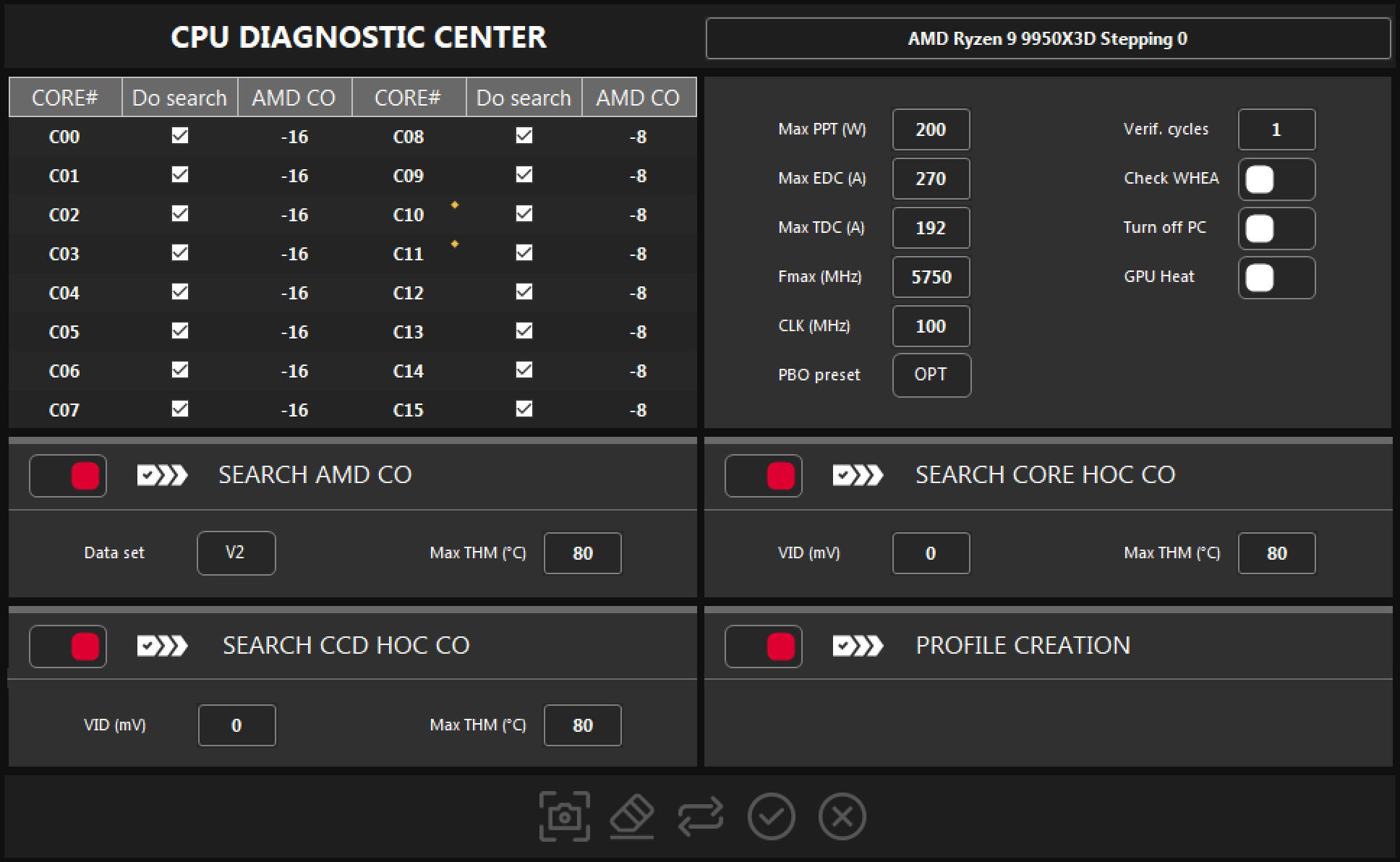
- 1Cores. Do search picks the cores to test. AMD CO is the Curve Optimizer value each core starts from; starting closer to the result saves time.
- 2Best cores. The yellow diamond marks the two best cores reported by AMD. HYDRA tests them longer.
- 3Limits. PPT, EDC, TDC, Fmax and the reference clock used during the run. See Settings.
- 4PBO preset. A quick choice of the limits, see the table below.
- 5Test options. Verification cycles, the WHEA check, shutting down after the run and an extra load on the graphics card.
- 6SEARCH AMD CO. The Curve Optimizer search for AMD PBO2.
- 7SEARCH CORE HOC CO. The HOC search for every core, for HYBRID OC.
- 8SEARCH CCD HOC CO. The HOC search for each CCD, for HYBRID OC.
- 9PROFILE CREATION. Builds the HYBRID OC boost profiles.
- 10Buttons. Screenshot, reset to defaults, import from AMD PBO2 and HYBRID OC, start, cancel.
The switch on the left of each stage turns it on or off. The stages run in this order: SEARCH AMD CO, SEARCH CORE HOC CO, SEARCH CCD HOC CO, PROFILE CREATION. If you use only AMD PBO2, leave just SEARCH AMD CO on.
| Preset | Limits |
|---|---|
| ECO | Max THM 65 °C and lower power and current limits: low voltage and temperature. |
| OPT | Max THM 80 °C, the stock PPT, and EDC and TDC 20 % above stock. The default. |
| OC | Max THM 90 °C, and PPT, EDC and TDC at 0, that is without a limit. Needs strong cooling. |
A preset fills Max THM of every stage and Max PPT, EDC and TDC; you can change any field afterwards. The result is stable only under the limits it was found with: a Curve Optimizer found at 65 °C may fail at 90 °C.
Settings
| Field | What it does |
|---|---|
| Max PPT (W) | The package power limit during the run. |
| Max EDC (A) · Max TDC (A) | The short-term and the sustained current limit. 0 means no limit. |
| Fmax (MHz) | The highest clock allowed, up to 5950 MHz. 0 means no limit. |
| CLK (MHz) | The reference clock, eCLK or BCLK. Recommended 100 to 102.4 MHz, by default 100. Greyed out when the motherboard does not allow changing it. |
| Verif. cycles | How many final verification rounds run after each search, from 0 to 10. 0 skips the final verification. |
| Check WHEA | Counts new WHEA hardware errors in the Windows log as a failure, even when the test itself did not crash. |
| Turn off PC | Shuts Windows down 15 seconds after the diagnostic ends. |
| GPU Heat | Loads the graphics card with VANTA during the searches, so the case heats up as in a game. Adds power and heat. |
| Data set | The tests of SEARCH AMD CO: V1 is extremely heavy, V2 is typical and the default. |
| Max THM (°C) | The temperature limit of each stage, from 30 to 95 °C. |
| VID (mV) | The voltage ceiling of the HOC search: from 950 to 1475 mV, or 0 to let HYDRA choose. The field of SEARCH CORE HOC CO is for light loads, the one of SEARCH CCD HOC CO for multi-thread loads. |
What the diagnostic does
- Preparation. HYDRA resets your Curve Optimizer and Curve Shaper and applies the limits from the dialog.
- SEARCH AMD CO. Under a heavy y-cruncher load, HYDRA tests the cores one by one and all together, and step by step finds the deepest Curve Optimizer each core stays stable with.
- Verification. With Verif. cycles above 0, HYDRA restarts the PC and checks the result again with longer runs. If an error shows up, it makes the values gentler.
- HOC searches. SEARCH CORE HOC CO and SEARCH CCD HOC CO find the HOC values for HYBRID OC, per core and per CCD, each with its own verification.
- PROFILE CREATION. From the values found, the VID and the limits, HYDRA builds the HYBRID OC boost profiles for different loads.
After the diagnostic
- SEARCH AMD CO writes the Curve Optimizer of every tested core to AMD PBO2, together with the PPT, EDC, TDC, temperature and clock limits of the run, FIT 1 and the reference clock.
- The HOC values, the VID and the clock limits of the cores go to the HYBRID OC tab.
- The log in LOGGING ends with Final results: the Curve Optimizer of every core.
- To check the profile again later, use VERIFICATION in TESTS.
- Do not expect a perfect result for every program: the diagnostic tests one kind of load in limited time. If something still crashes, weaken the Curve Optimizer of that core by a few steps in AMD PBO2.
- If the PC crashes or restarts, the diagnostic continues after HYDRA starts again. It waits 30 seconds first: press STOP to cancel. It continues with a gentler value for the core that crashed.
Good to know
- Results vary slightly from run to run: the processor adjusts its boost a little every time it starts.
- To repeat only part of the diagnostic, turn off the stages you do not need, for example after you change the profile voltages.
- A lower Max THM helps Ryzen 7000 and 9000 boost higher: a cooler core needs less voltage for the same clock.
- Run the diagnostic again after a BIOS update, a new cooler or thermal paste, changed memory or VRM settings in BIOS, or a much warmer season.
Something wrong or missing on this page? Tell us in Discord.