
ELECTRIC DREAMS NIGHT BENCHMARK
What it is. A GPU benchmark built into HYDRA: a night forest scene in Unreal Engine 5.8.4 with Lumen, hardware ray tracing, Nanite and MegaLights, always rendered at 2560 × 1440. The score is the number of frames rendered during a fixed flight through the scene, and a run can be published to an online scoreboard.
Why use it. In a few minutes it shows what a GPU setting really gives in a modern, heavy game engine. Compare runs before and after a change, see the clocks, voltages and power behind each score, and see where your chip and your score stand among cards of the same model.
Run the benchmark
- Open the TESTS tab and click Electric Dreams Benchmark in the GPU section.
- Choose the graphics card in the list next to Run; the GPU active in HYDRA is selected by default. Close other demanding programs for a fair result, then click Run.
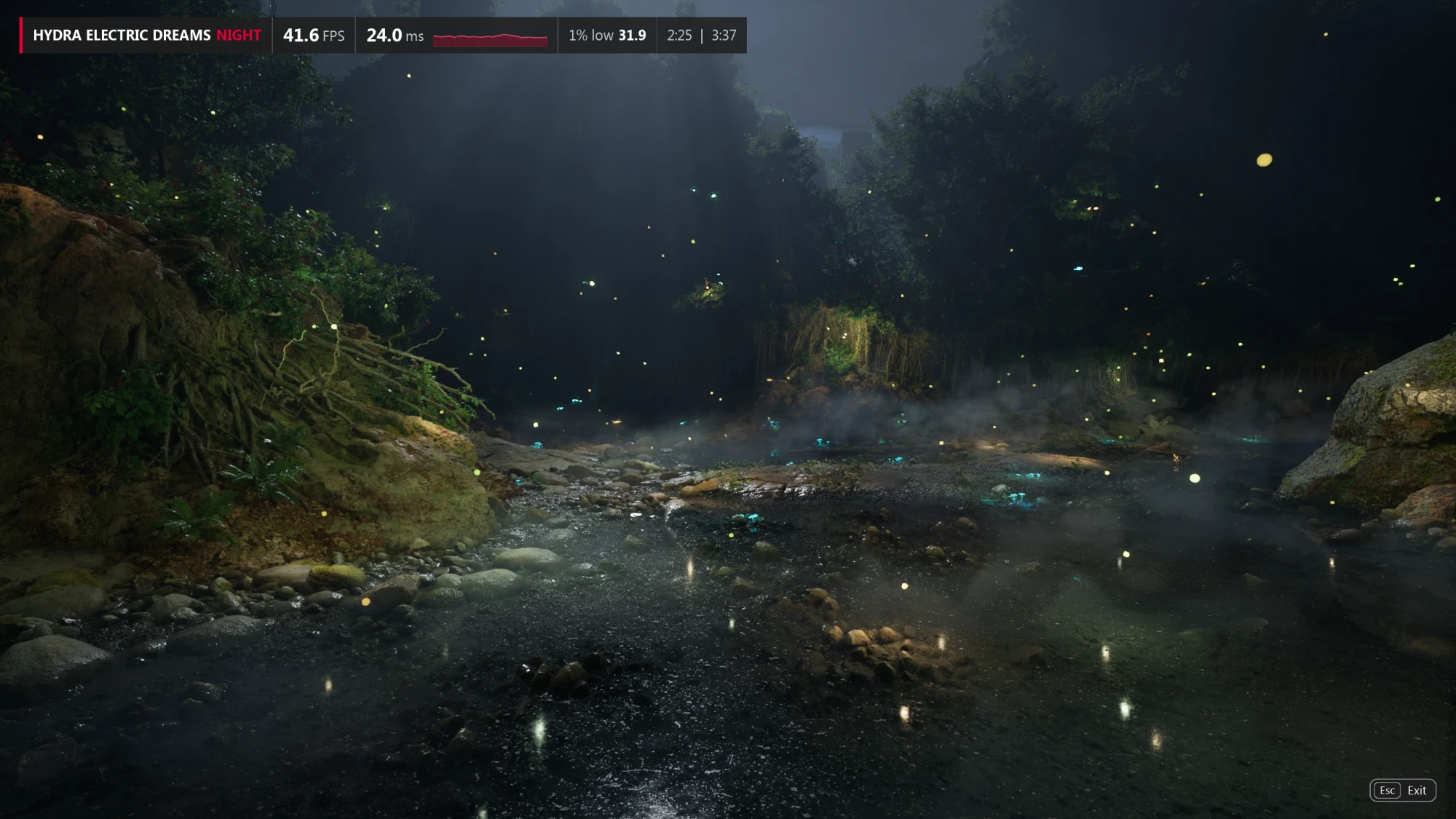
- The shaders compile first. Then the measured flight runs with an overlay that shows FPS, frame time, the 1% low and the elapsed and total time. Esc exits.
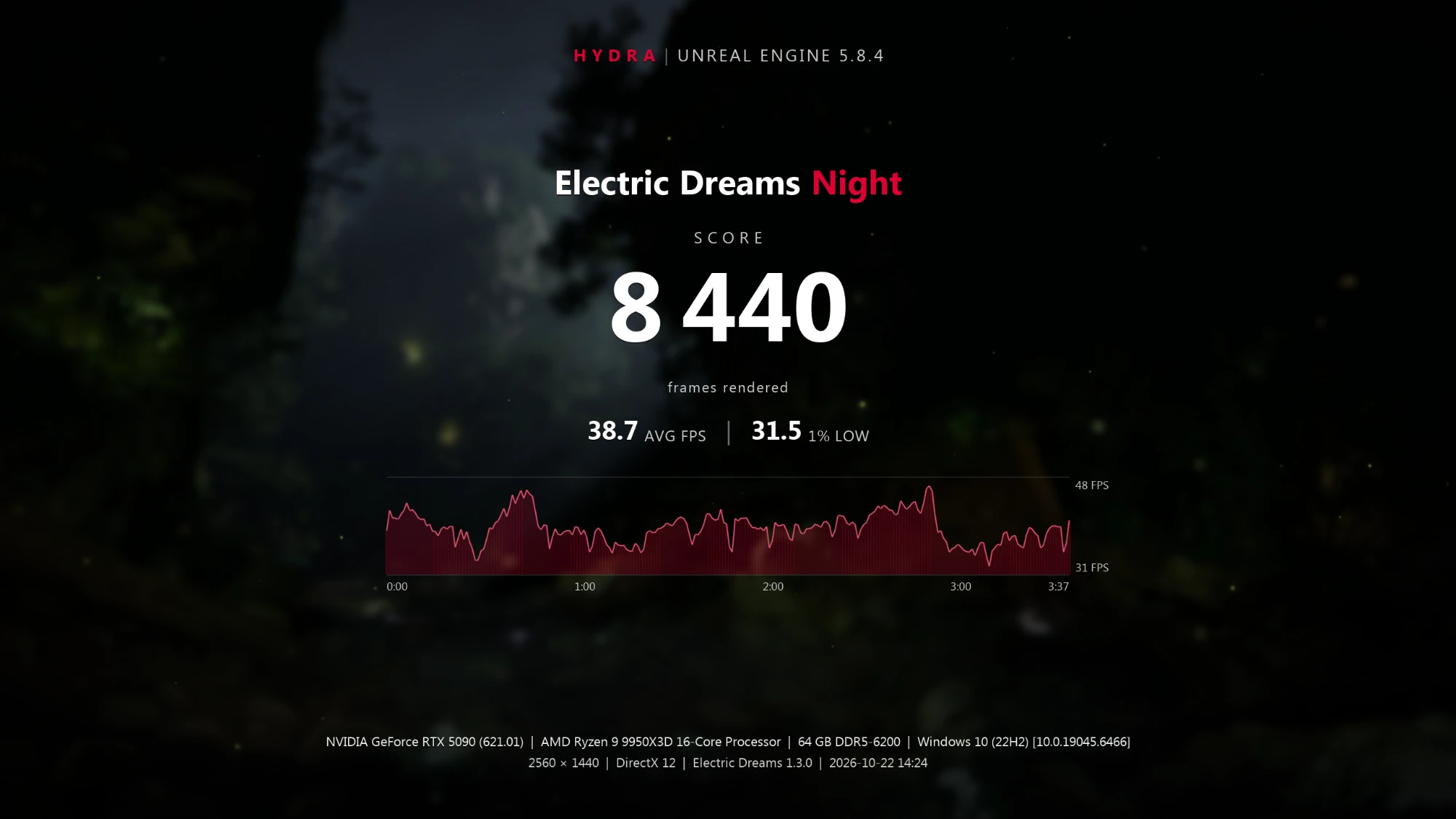
- The result screen shows the score, the average FPS, the 1% low and FPS over the run. Back in HYDRA, the run appears in the table.

- The benchmark needs a GPU with at least 12 GB of VRAM; on Radeon, an RX 6800, RX 7700 XT, RX 9060 XT or faster.
- It always renders at 2560 × 1440: in full screen on a 2560 × 1440 monitor, in a borderless 2560 × 1440 window on any other. A smaller monitor shows only part of the window, but the GPU load is the same, so scores stay comparable. If Windows makes the window smaller, HYDRA stops the run.
- The flight has a fixed length (3:37 in the example), so a faster GPU renders more frames and gets a higher score.
The scoreboard
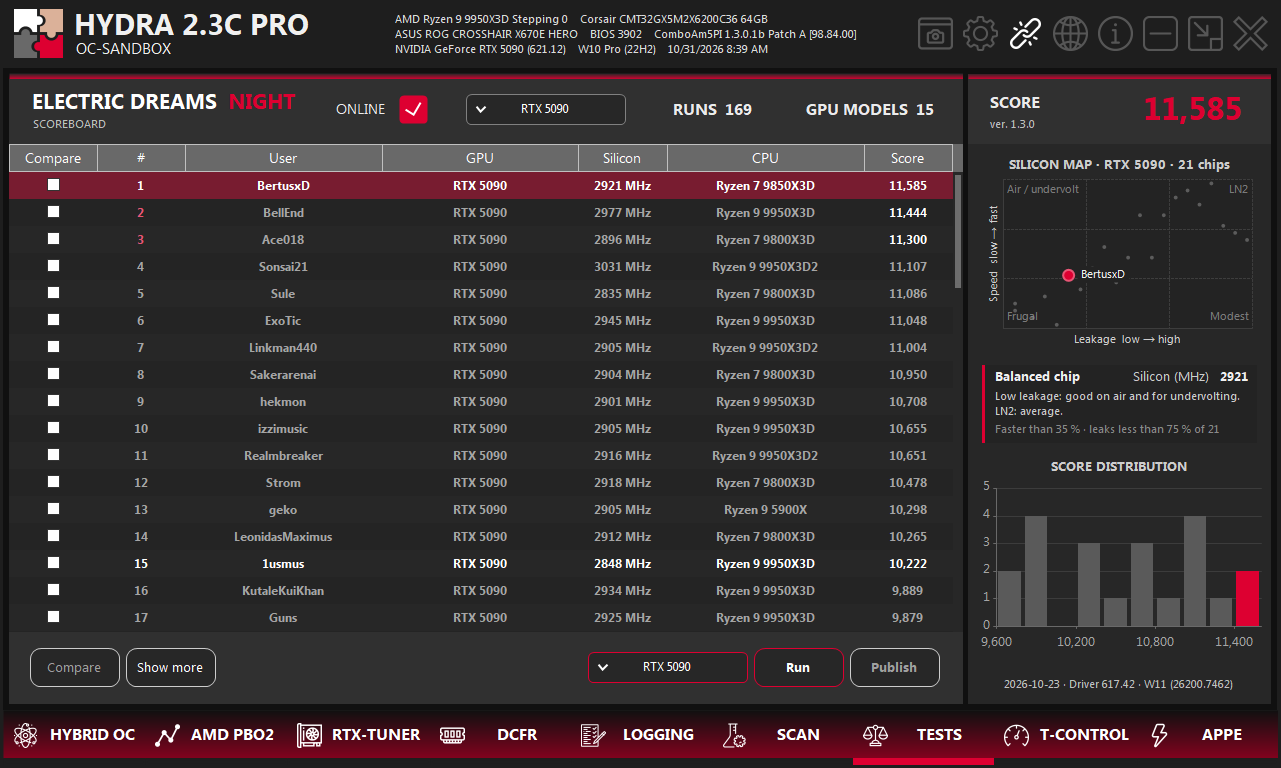
- 1ONLINE. On: the world top 100 for the selected GPU, one best run per account, with your unpublished run from this session at its expected place (~N). Off: all runs saved on this PC, without contacting the server.
- 2GPU filter. All GPUs, only NVIDIA, only Radeon or one model.
- 3Counters. How many runs and GPU models the online board, or this PC, holds.
- 4Compare. Tick two runs here, then click Compare.
- 5Silicon. The chip's factory frequency from NVIDIA's model, not a test result. See Silicon map.
- 6Compare and Show more. Compare the two ticked runs, or open the charts and details of the selected run.
- 7GPU and Run. The card that runs the benchmark, and the start button.
- 8Publish. Sends the run you measured in this session to the online scoreboard under your nickname.
- 9Score. The score of the selected run and the benchmark version.
- 10Silicon map. Speed against leakage of the selected chip among chips of the same model.
- 11Chip verdict. What the chip's place on the map means for air cooling, undervolting and LN2.
- 12Score distribution. How the scores of this GPU model spread; the bar of the selected run is red.
- Only a run measured in the current session can be published. The board keeps one best run per account.
- The nickname belongs to your HYDRA account and is set in SETTINGS: up to 24 characters, letters, digits, spaces and
. _ -. If you have none yet, HYDRA asks for it when you publish. - The online scoreboard can also be viewed in a browser, without HYDRA, at hydraboard.1usmus.dev.
Silicon map
The Silicon column and the map use the chip passport that NVIDIA stores in the VBIOS of every card. They describe the chip itself: overclocking, cooling and settings do not change them.
- Silicon is the chip's Stock frequency at 60 °C from NVIDIA's factory model: the frequency at the voltage ceiling NVIDIA sets for this chip. The more the chip leaks, the lower that ceiling.
- The map puts the chip on two scales within NVIDIA's range for the model: speed upwards, leakage to the right. Compare only cards of the same GPU model.
- When the online board has at least 5 different chips of the model, the line under the verdict says how many of them yours beats. With fewer, it gives the chip's place in NVIDIA's range.
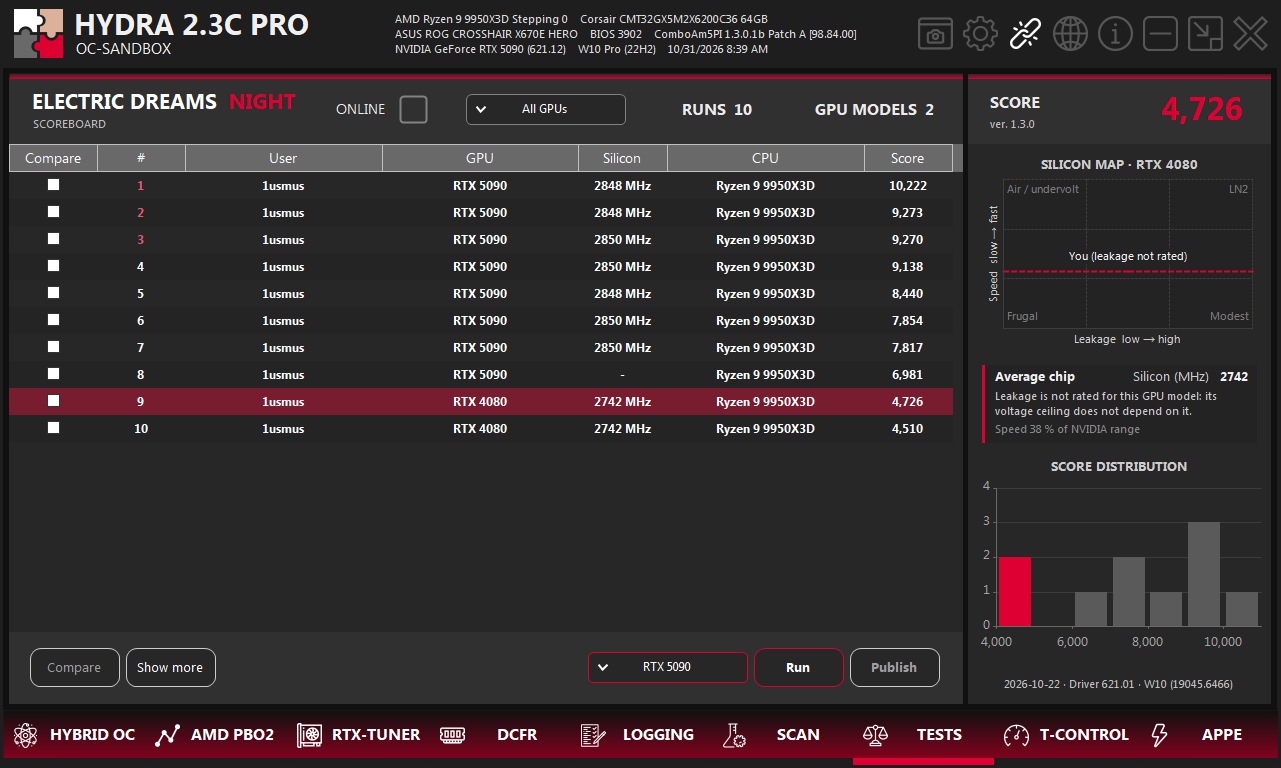
- Some models have no leakage rating, such as the RTX 4080 below; then only speed counts. Radeon cards have no chip passport, and the Silicon column shows a dash.
| Verdict | Speed | Leakage | Meaning |
|---|---|---|---|
| Golden for air | High | Low | High voltage ceiling and the most MHz per watt. Best for daily overclocking and undervolting. |
| Fast chip | High | Medium | Strong on air with a decent voltage ceiling. Worth a try on LN2. |
| LN2 candidate | High | High | Cold removes the leakage and the speed stays. On air: heat and a low voltage ceiling. |
| Balanced chip | Medium | Low | Low leakage: good on air and for undervolting. Average on LN2. |
| Average chip | Medium | Medium | A typical sample of this GPU model. |
| Warm chip | Medium | High | Lower voltage ceiling and more heat. Good cooling pays off. |
| Cool and frugal | Low | Low | Undervolts well, but the frequency ceiling is low. |
| Modest chip | Low | Medium | Below-average speed. Undervolting suits it best. |
| Modest sample | Low | High | Low voltage ceiling and runs warm. Undervolting suits it best. |
Compare runs
Tick two runs in the Compare column and click Compare. Both runs must use GPUs from the same vendor, NVIDIA or Radeon.
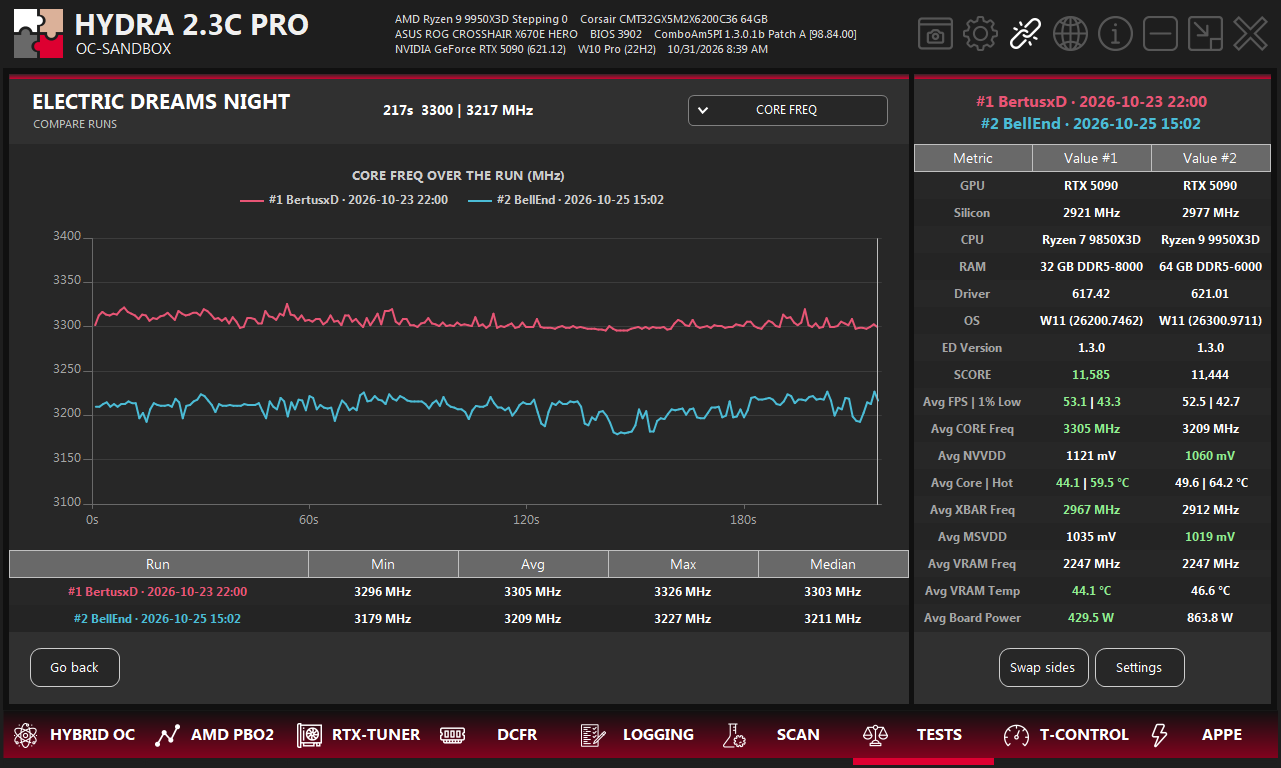
- 1Value at the cursor. The time and the values of both runs where the mouse pointer is on the chart.
- 2Chart value. What the chart shows over the run: FPS, FPS per 100 W, clocks, voltages, temperatures or power.
- 3Chart. The chosen value over the run, one line per run.
- 4Statistics. Minimum, average, maximum and median of the chosen value for each run.
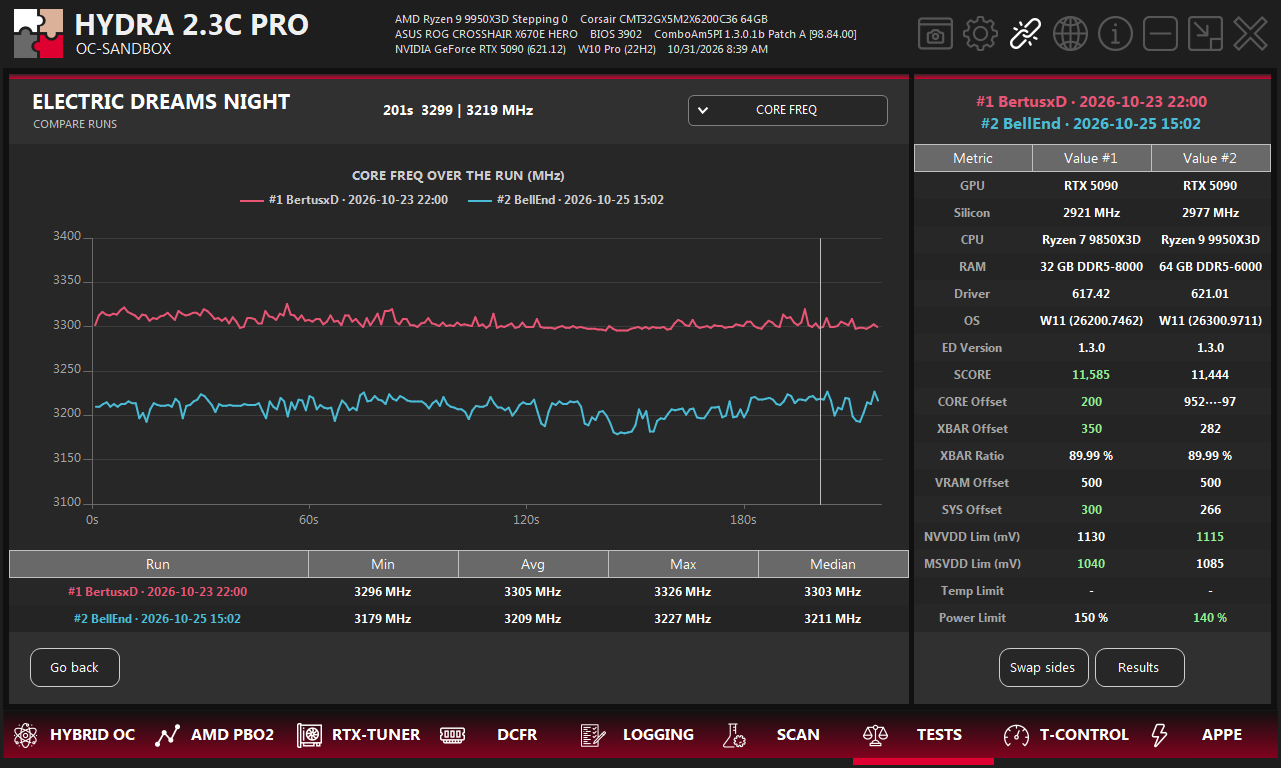
- 5Runs and values. GPU, silicon, CPU, RAM, driver, Windows build, benchmark version and score of both runs, then their results or settings.
- 6Swap sides and Settings. Swap runs #1 and #2, or switch the table between the results and the settings of each run.
- 7Go back. Returns to the scoreboard.
- Green marks the better value in each row: higher for the score, FPS and clocks, lower for voltages, temperatures, power and limits.
- Results shows the averages of the run; on NVIDIA: FPS and 1% low, core and XBAR clocks, NVVDD and MSVDD, core and hotspot temperature, video memory clock and temperature, and board power. Settings shows what was set in HYDRA; on NVIDIA: core, XBAR, VRAM and SYS offsets, XBAR Ratio, NVVDD and MSVDD Lim, and temperature and power limits.
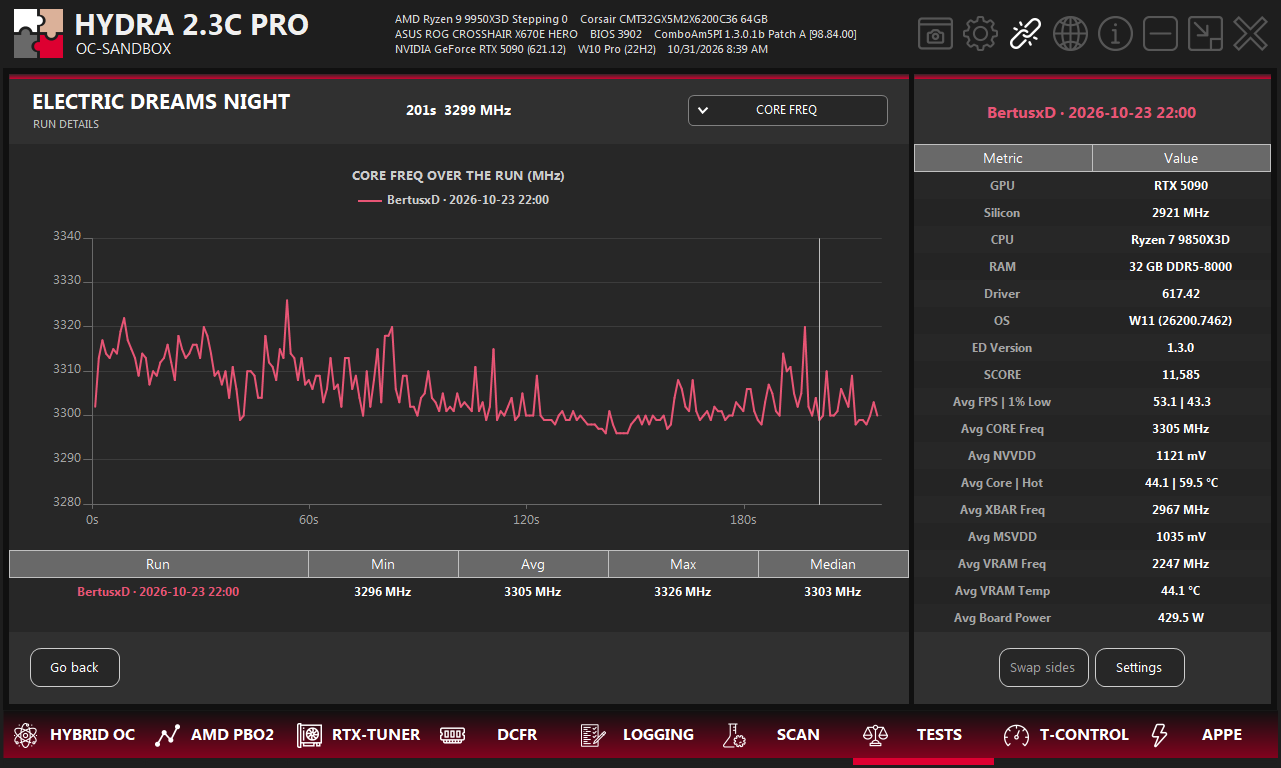
- Show more on the scoreboard opens the same view for a single run.
Something wrong or missing on this page? Tell us in Discord.