
CURVE EDITOR
Curve Editor shows and changes the voltage–frequency (V/F) curve of an NVIDIA GPU. Each point says how fast the GPU may run at one voltage, and you move points up or down from the factory curve. The editor also records what the card does under load and tells you what held its clock back.
Open the editor
- Open RTX-TUNER, then choose the profile and the adapter.
- Click Curve Editor. The adapter you are editing is shown at the top, for example
#0 — RTX 5090 [Display].
If the RTX-TUNER profile is running, each change is applied to the card as a live preview, so you can watch it in a game. If the profile is off, you see the change only on the chart.
Apply keeps the curve in the profile and closes the editor. Cancel closes the editor and puts the card back the way it was when you opened it.
The screen at a glance
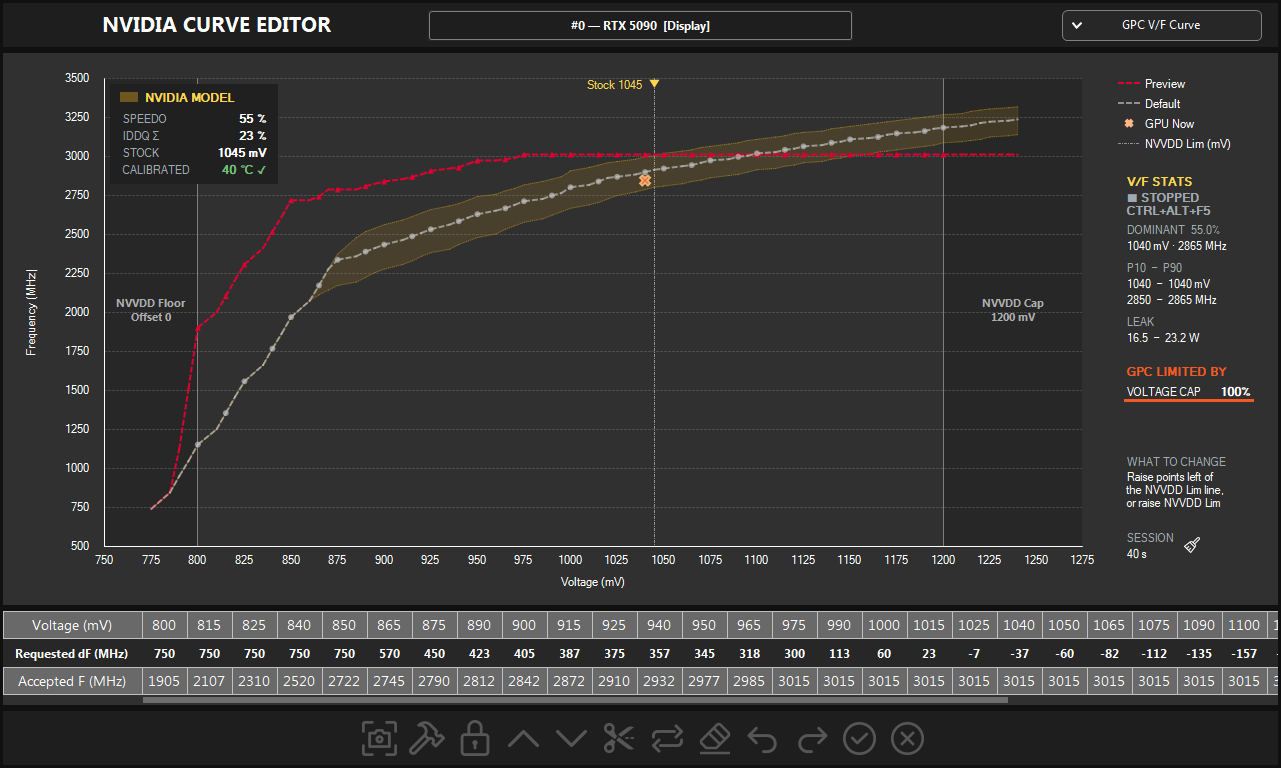
- 1Adapter. The GPU you are editing: index, model, and
[Display]for the card that drives the monitor. - 2Mode. Which curve or NVIDIA model chart is shown. See Modes.
- 3NVIDIA MODEL. Where this chip sits among chips of the same model, read from the VBIOS.
- 4Legend. Preview is your curve, Default is the factory curve, GPU Now is the live point.
- 5Model band. The clocks NVIDIA's model allows at each voltage, from the slowest to the fastest chip.
- 6GPU Now. Where the GPU runs at this moment: effective clock at the live voltage.
- 7Floor and Cap. Left of NVVDD Floor the offset stays at 0. NVVDD Cap is the highest NVVDD Lim the driver accepts.
- 8V/F STATS. Results of the last V/F session. See V/F session.
- 9LIMITED BY. What held the clock under load, and what to change.
- 10Curve table. The offsets you edit, one column per voltage point.
- 11Toolbar. Screenshot, Builder, voltage lock, steps, Cut, Sync, Reset, Undo, Redo, Apply, Cancel.
Reading the chart
- Default, the grey line with dots, is the factory curve the driver builds for this chip. It shifts with temperature, so your offsets ride on a moving base.
- Preview, the red dashed line, is your curve as the card accepted it.
- GPU Now, the orange cross, is the live operating point.
- Stock, the yellow marker at the top, is the factory voltage ceiling.
- NVVDD Lim, the dotted vertical line, is the highest voltage the GPU may use right now. Points to its right are not used. You raise it in Voltage & Current, which needs an XOC mode (see NVIDIA XOC UNLOCK).
NVIDIA MODEL
The box in the top-left corner comes from NVIDIA's own characterization of this GPU model, stored in the VBIOS.
- SPEEDO and IDDQ Σ place this chip on the model's speed and leakage scales, from 0 % (minimum) to 100 % (maximum). A dash means the value is not in the model.
- STOCK is the factory voltage ceiling, 1045 mV on this card.
- CALIBRATED is the GPU temperature at which the model reproduces Default exactly.
≠ Defaultmeans it does not, and the yellow band is hidden.
The curve table
Each column is one voltage point. You type or step the middle row; the bottom row is what the card will actually run.
| Voltage (mV) | 800 | 815 | 825 | 840 | 850 | 865 | 875 | 890 | 900 | 915 | 925 | 940 | 950 | 965 | 975 | 990 | 1000 | 1015 | 1025 | 1040 | 1050 | 1065 | 1075 | 1090 | 1100 |
|---|---|---|---|---|---|---|---|---|---|---|---|---|---|---|---|---|---|---|---|---|---|---|---|---|---|
| Requested dF (MHz) | 750 | 750 | 750 | 750 | 750 | 570 | 450 | 423 | 405 | 387 | 375 | 357 | 345 | 318 | 300 | 113 | 60 | 23 | −7 | −37 | −60 | −82 | −112 | −135 | −157 |
| Accepted F (MHz) | 1905 | 2107 | 2310 | 2520 | 2722 | 2745 | 2790 | 2812 | 2842 | 2872 | 2910 | 2932 | 2977 | 2985 | 3015 | 3015 | 3015 | 3015 | 3015 | 3015 | 3015 | 3015 | 3015 | 3015 | 3015 |
- Voltage (mV) is the point you control.
- Requested dF (MHz) is your offset from Default at that voltage. Positive values raise the curve, negative values lower it.
- Accepted F (MHz) is the clock the card will run at that voltage after the driver accepted the curve.
In the example the offsets turn negative on the right. That is expected: Default keeps rising with voltage, so the flat top needs smaller and smaller offsets to stay at 3015 MHz.
Scroll the mouse wheel over the table to move along the voltage points. Drag across cells to select a range.
Toolbar
| Button | What it does | Keys |
|---|---|---|
 Screenshot Screenshot | Saves a screenshot of the editor. | |
 Curve Builder Curve Builder | Builds the selected curve from a few key voltage points. See Curve Builder. | |
 Voltage lock Voltage lock | Select one GPCCLK cell and click to lock the GPU at that voltage. Click again to unlock. Apply saves the lock in the RTX profile. | |
 Up Up | Raises the selected points by 15 MHz, or the whole curve if nothing is selected. | ↑ · Shift+↑ 75 MHz |
 Down Down | Lowers the selected points by 15 MHz, or the whole curve if nothing is selected. | ↓ · Shift+↓ 75 MHz |
 Cut Cut | Select a point first. Points below it stay as they are; the curve above it becomes flat. Use it to stop boost from climbing to higher voltages. | |
 Sync Sync | Copies the selected point's offset to the whole editable curve. | |
 Reset Reset | Clears all offsets and redraws Default. Apply keeps the reset curve; Cancel does not. | |
 Undo Undo | Goes back one step in this editor session. | Ctrl+Z |
 Redo Redo | Goes forward again after Undo. | Ctrl+Y · Ctrl+Shift+Z |
 Apply Apply | Keeps the edited curve and closes the editor. | |
 Cancel Cancel | Closes the editor without the changes made in it and restores the card. |
Editing on the chart
You can also edit right on the chart. Every change goes through the same path as the table, so Undo and the preview work the same way.
| Do this | Result |
|---|---|
| Drag a point up or down | Moves it in 15 MHz steps. While you drag, a label shows its dF from Default. |
| Drag one of several selected points | Moves the whole selection together. |
| Ctrl + drag | Shifts the whole curve. |
| Shift + drag | Selects a voltage range. |
| Drag on an empty spot | Draws a box and selects the points inside it. |
| Mouse wheel | Zooms the frequency axis around the cursor. |
| Double-click an empty spot | Resets the zoom. |
| Esc | Cancels a drag in progress, or clears the selection. |
Curve Builder
Curve Builder draws a whole curve from a few key points, so you do not have to set every column of the table. It opens from the hammer button and builds the curve shown in the editor: GPC, XBAR, SYS or NVD.
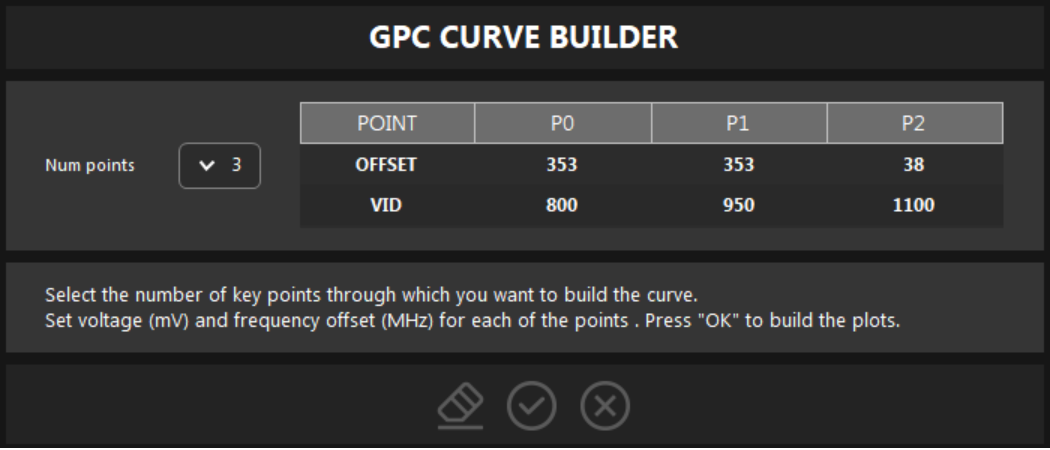
- 1Num points. From 3 to 8 key points. Changing it rebuilds the table, so check the values afterwards.
- 2Points. For each point, VID in mV and OFFSET in MHz from Default.
- 3Reset. Spreads the points evenly across the editable voltage range and sets every offset to 0 MHz. Only the table changes until you press OK.
- 4OK. Builds the curve and saves these key points for the profile, card and curve.
- 5Cancel. Closes Curve Builder without changing the curve.
- VID must grow from P0 to the last point, and each point must land on its own curve point. A VID between two curve points moves to the next one on the right.
- Offsets go from −1000 to +1000 MHz.
- Each card and each curve keeps its own key points. Reopening Curve Builder brings them back; after you edit the curve by hand, it reads the offsets back at the same VIDs.
- Curve Builder saves only its key points. The rest of the RTX profile is saved with Save RTX profiles on the RTX-TUNER tab.
Modes
The list in the top-right corner switches between curves and NVIDIA model charts. Each curve keeps its own edits, undo history, live marker and statistics.
- GPC V/F Curve
- Graphics clock against the live core voltage (VID). The curve that matters most in games.
- XBAR V/F Curve
- Crossbar clock against the programmed MSVDD voltage.
- SYS V/F Curve
- System clock on the MSVDD rail.
- NVD V/F Curve
- Video clock on the MSVDD rail.
- NVVDD LEAKAGE MODEL
- RTX 50 and RTX PRO Blackwell. The table below still edits the GPC curve.
- MSVDD LEAKAGE MODEL
- Shown when the GPU model publishes MSVDD leakage. The table edits the XBAR curve.
- GPC THERMAL MODEL
- How the driver's GPC base curve shifts with temperature.
V/F session and LIMITED BY
A V/F session records where the GPU actually runs. Press Ctrl+Alt+F5 to start, play or run a benchmark, then press it again to stop. The shortcut works while the editor is open, even when a game has focus.
2850 – 2865 MHz
- DOMINANT is the point the GPU used most often, and its share of the samples.
- P10 – P90 is the range of the middle 80 % of samples, without rare outliers.
- LEAK is leakage power over the session by NVIDIA's model. At light load the real figure is lower.
- LIMITED BY counts only the time at 90 % GPU load or more. The percentages are shares of that time, and the top reason decides WHAT TO CHANGE. Hover the panel for details and the driver's own limit names.
In this example the GPU sat at 1040 mV, right under NVVDD Lim (1045 mV), for the whole session. More clock has to come from points left of the Lim line, or from a higher NVVDD Lim.
Reasons
| Reason | What happened | What to change |
|---|---|---|
| POWER LIMIT | The card reached its board power target. | Raise Power Limit in RTX-TUNER. If it is at the maximum, lower the voltage of the top curve points. |
| TEMPERATURE | A temperature limit lowered the clock. | Raise Temp Limit in RTX-TUNER, or improve cooling and fan speed. |
| VOLTAGE CAP | The GPU reached its highest allowed voltage; points above it are not used. | Add MHz to points left of the Lim line, or raise the Lim in Voltage & Current. |
| CURVE TOP | The driver ran the highest clock your curve allows. | Add MHz to the top points. |
| DRIVER CHOICE | Nothing capped the clock; the driver picked a lower one for this load. | Nothing to change. |
| CLOCK LOCK | A voltage or clock lock, or an application clock limit, held the clock. | Remove the lock. |
| OTHER | A driver or system rule: display, PCIe, ECC or error recovery. | Not tunable. |
GPU NOT LOADED means the GPU stayed under 90 % load for the whole session: run a game or a stress test while recording. DATA UNAVAILABLE means this GPU or driver does not report boost limits.Something wrong or missing on this page? Tell us in Discord.