
NVIDIA XOC UNLOCK
XOC unlock widens the limits RTX-TUNER may use: board power up to 150 %, a larger video memory offset and higher current limits. It is one switch in SETTINGS, and it stays on until you turn it off.
Turn it on
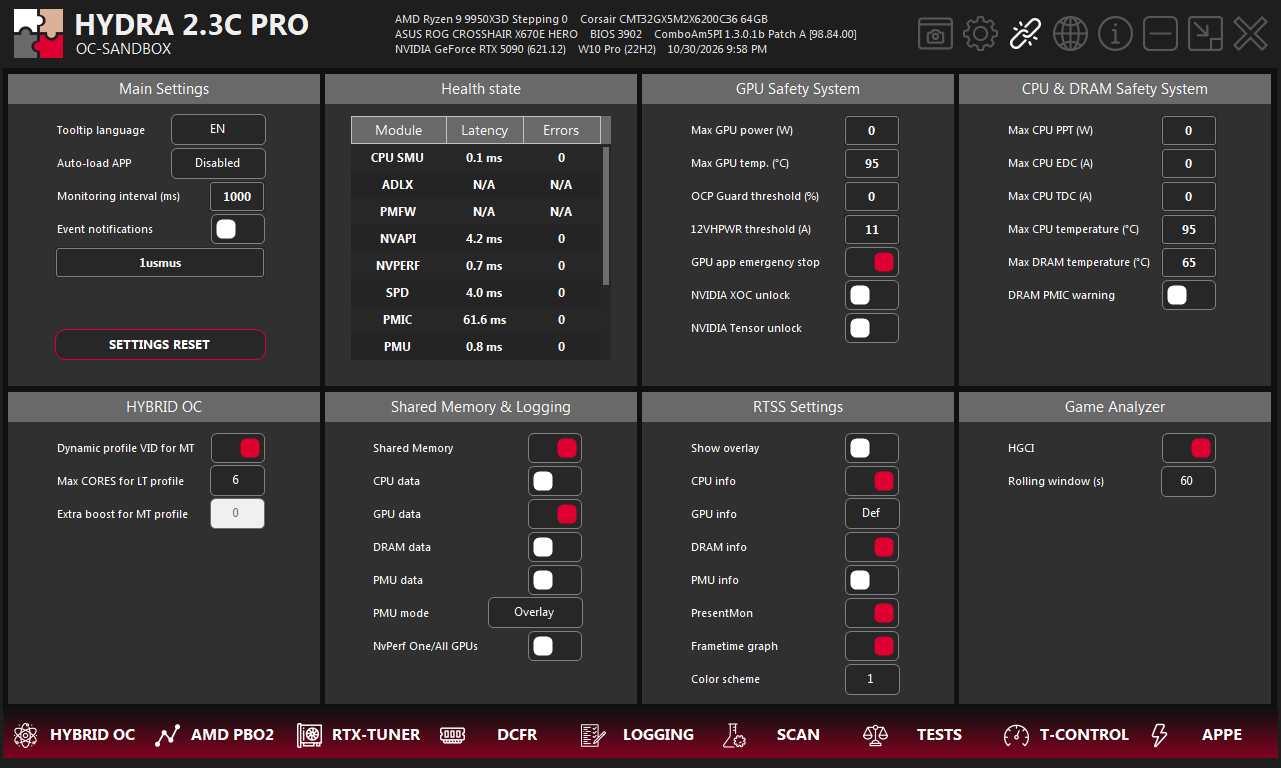
- 1SETTINGS. The gear icon in the top-right corner of HYDRA opens this tab.
- 2NVIDIA XOC unlock. The switch in the GPU Safety System panel.
Switch NVIDIA XOC unlock on. XOC starts with the 150 % preset and widens the ranges your card supports. Input current and OCP keep their initial values until a profile applies your own settings.
What it unlocks
| Setting | Where | With XOC |
|---|---|---|
| Power limit (%) | RTX-TUNER | Up to 150 % on desktop GeForce RTX 40, supported RTX 50 and RTX PRO 6000. If the stock driver maximum is higher, it stays available. |
| VRAM offset (MHz) | RTX-TUNER | The board's full memory offset range on RTX 50 and RTX PRO 6000. |
| NVVDD / MSVDD Lim (mV, A) | RTX-TUNER → Voltage & Current | Available only with XOC. The maximum follows the XOC tier; a higher current limit makes overcurrent protection trigger later. |
| Input current (A) | RTX-TUNER → Voltage & Current | The initial maximum is raised by 50 %. |
Voltage & Current Limits
The Voltage & Current button on RTX-TUNER opens this window. The values are absolute (mV or A) and belong to the selected profile; the round arrow next to each one returns it to stock. The ranges depend on the card and the XOC tier. Example from an RTX 5090 with XOC on:
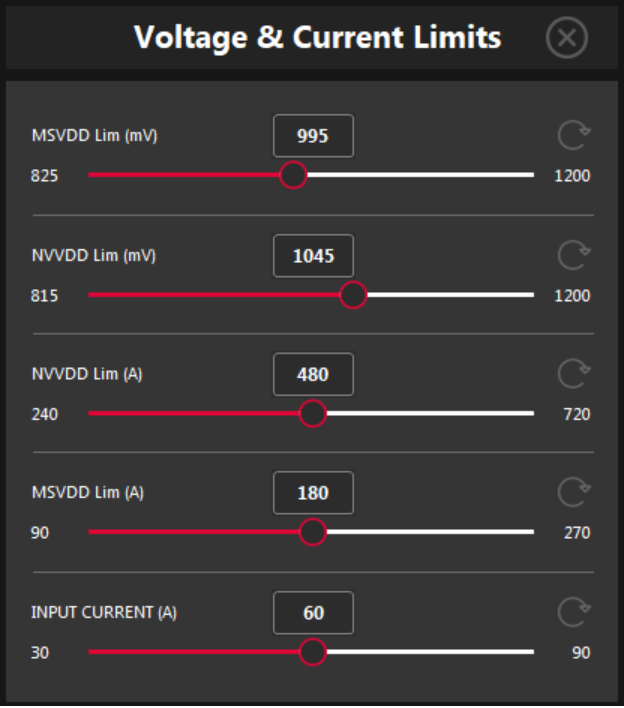
- 1Value. The limit for the selected profile, in mV or A. Type it or drag the slider.
- 2Range. The lowest and highest value this card allows at the current XOC tier.
- 3Reset. Returns this limit to stock.
- 4Close. Closes the window.
NVVDD Lim (mV) is the NVVDD Lim line in CURVE EDITOR: curve points above it are not used. The current limits (A) set where overcurrent protection steps in.
Check that it worked
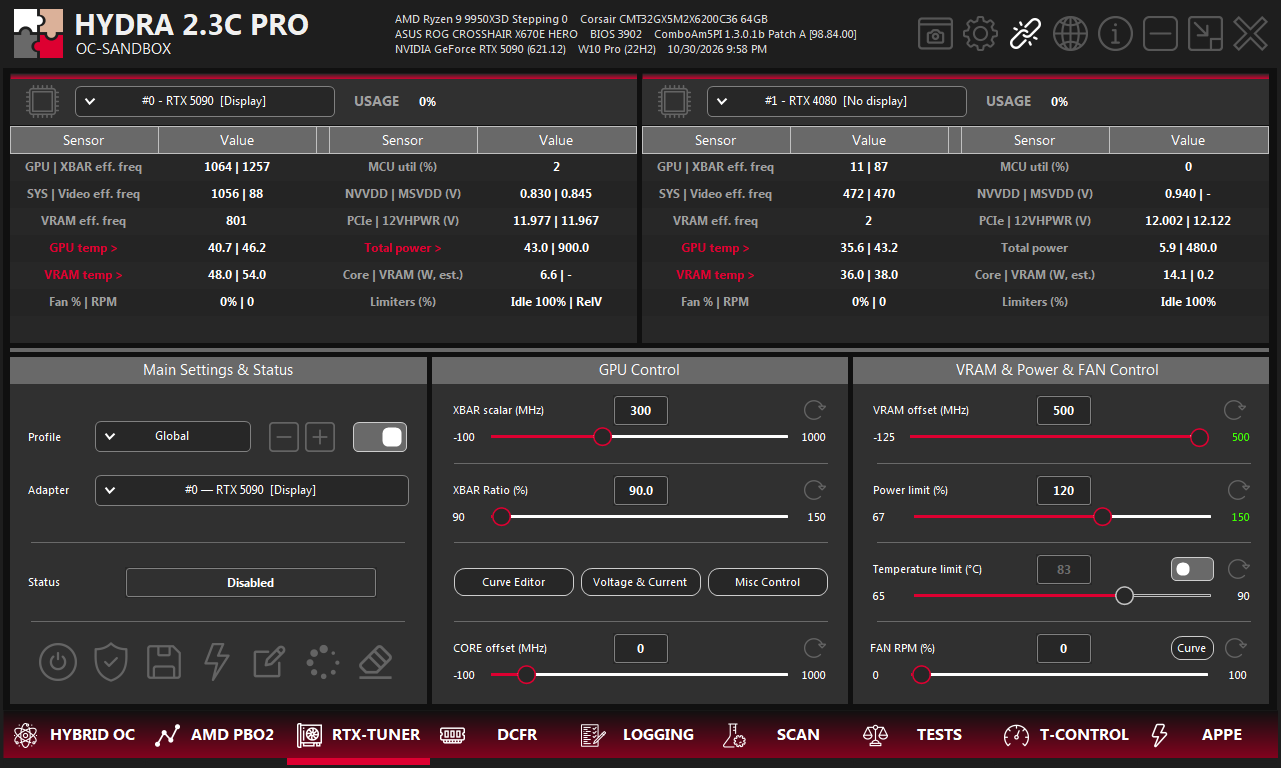
- 1RTX-TUNER. The tab where the unlocked ranges are used.
- 2Power limit maximum. 150 in green: the power unlock is ready.
- 3VRAM offset maximum. 500 in green: the memory unlock is ready.
- 4Voltage & Current. NVVDD / MSVDD limits and input current. Needs XOC.
The colour of the maximum value at the right end of a slider tells you the state of its unlock:
- Green — the unlocked range is ready.
- Red — XOC is on, but this unlock did not work. The LOGGING tab has a line that starts with
NVIDIA XOC operation unavailable:. - White — XOC is off, or the card has no unlock of this kind.
The unlock stays active even when RTX-TUNER profiles are switched off.
Turn it off
Switch NVIDIA XOC unlock off. HYDRA restarts the NVIDIA driver, so the screen flickers briefly. The driver restart button on the RTX-TUNER tab also sets XOC to Disabled and returns the driver to stock.
Something wrong or missing on this page? Tell us in Discord.