
RADEON ADVANCED CONTROL
What it is. A window of RX-TUNER for Radeon RX 7000 and 9000 that goes deeper than the tab: a voltage offset curve in six zones, an AC PPT power limit in watts, memory timings and limits for the FCLK, UCLK and SOCCLK clocks. Everything is kept in the RX-TUNER profile selected in HYDRA.
Why use it. An undervolt per clock zone lowers the voltage only where the chip has margin, so the card can keep its clock with less heat. Tighter memory timings add speed beyond the memory clock. RX-TUNER switches these settings per game together with the rest of the profile.
The window at a glance
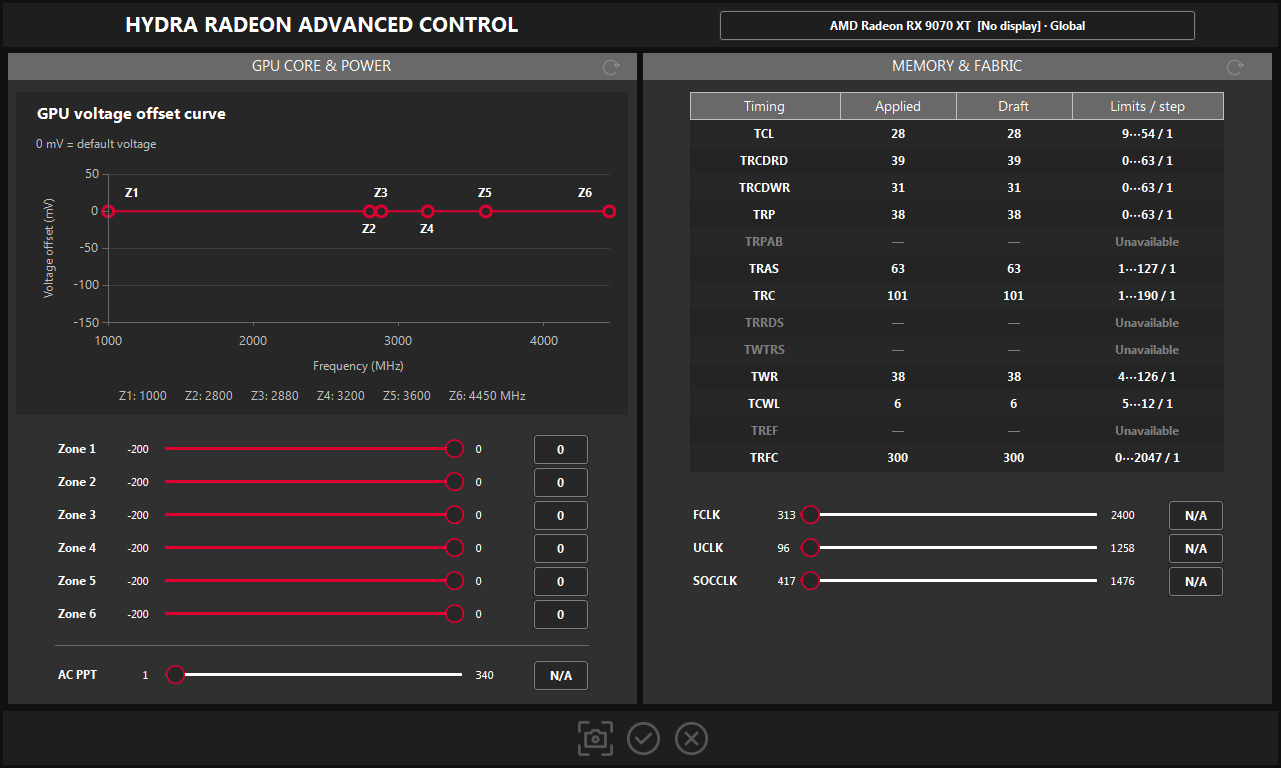
- 1Card and profile. The card and RX-TUNER profile you edit, chosen on the RX-TUNER tab.
- 2Voltage offset curve. The six zone offsets as a curve; 0 mV is the card's default voltage.
- 3Zone frequencies. The clock where each zone point sits, read from the card.
- 4Zones. Voltage offset of each zone in mV, in the range the card allows.
- 5AC PPT. Power limit of the card in watts.
- 6Timings. Memory timings: the applied value, your draft and the allowed range with its step.
- 7Unavailable. Grey rows are timings this card does not expose.
- 8Clocks. Upper limits for FCLK, UCLK and SOCCLK in MHz.
- 9Screenshot. Saves a screenshot of the window.
- 10Save. Saves the Radeon profiles to disk.
- 11Close. Closes the window; your edits stay in the profile.
How changes reach the card
- The window edits the profile and card selected on the RX-TUNER tab and follows when you pick another one there.
- Each change goes into that profile at once. Save here or on the RX-TUNER tab writes it to disk, so it is still there after HYDRA restarts.
- While RX-TUNER is on and this profile is in use, a change reaches the card on the next tuning cycle. Unlike the tab, editing here does not turn RX-TUNER off. While RX-TUNER is off, the changes wait in the profile.
- 0 or N/A means no change: the card keeps its own value. It does not undo a value that is already applied.
- When RX-TUNER switches to another profile or is turned off, HYDRA first returns these settings to what they were before it changed them.
Voltage offset curve
The card's voltage-frequency curve has six zones; Z1–Z6 under the chart show the clock where each zone point sits on this card. A negative offset lowers the voltage in that zone, which is an undervolt. The range comes from the card's firmware, for example −200 to 0 mV on an RX 9070 XT. Too much undervolt causes driver resets or crashes, so test each change under load.
AC PPT
The power limit of the whole card in watts, from 1 W up to the cap the firmware allows now. Unlike Power Limit on the RX-TUNER tab, it is a value in watts, not a percentage. N/A leaves the card's limit as it is.
Memory timings and clocks
| Column | What it shows |
|---|---|
| Applied | The value set on the card now. |
| Draft | Your value for the profile. Click the cell, type a number and press Enter. |
| Limits / step | The allowed range and step. A value outside the range or off the step is rejected. |
Grey rows marked Unavailable are timings this card does not expose. A row marked Derived is calculated from other timings and cannot be edited. When the headers read Applied Δ and Draft Δ, the values are offsets from stock instead of full timings.
| Clock | What it limits |
|---|---|
| FCLK | The GPU fabric clock. |
| UCLK | The memory clock. |
| SOCCLK | The SoC clock. |
Each value is the upper limit you ask for, in MHz. On some cards a clock has only fixed levels, and the slider steps between them. N/A leaves the clock as it is. Check memory changes with VANTA.
RX 6000: SOFT PP EDITOR
On RX 6000 the same button reads SOFT PP EDITOR and opens an editor of the card's PowerPlay table: memory voltages, power and current limits, clock limits, voltage curves and droop. Its changes take effect only after the Apply PowerPlay button on RX-TUNER writes the table and the driver restarts. RX 6300, 6400 and 6500 are not supported. Reset on RX-TUNER returns the table to factory.
Notes
- What the window offers depends on the card and driver. A group the card does not expose stays visible with a dash and cannot be edited.
- The round arrows in the panel headers do nothing yet.
- If the card rejects a change, the reason is written to the HYDRA log on the MONITORING & LOGGING page.
Something wrong or missing on this page? Tell us in Discord.